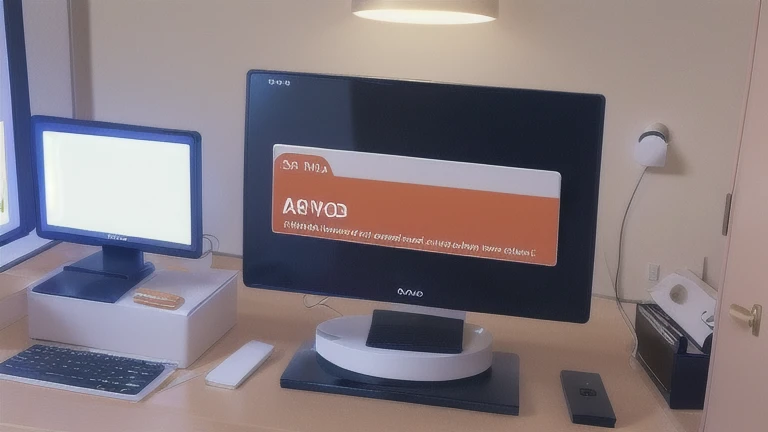
“My monitor won’t turn on even though it’s connected via HDMI…” — dealing with this issue?
On desktop PCs, external monitors may fail to display due to incorrect settings, connection issues, or hardware problems.
In this guide, we’ll explain why your HDMI monitor is not working and how to fix it step by step: Symptoms → Who This Applies To → Causes → Solutions.
If you’re experiencing other PC issues, check these articles as well:
How to Fix “No Signal” on PC Monitor
How to Fix Black Screen on Windows PC
■ Symptoms
These issues are often caused by a mix of settings, cables, ports, or driver problems.
■ Who This Applies To
On desktop PCs, incorrect port usage is one of the most common causes.
■ Causes
① Faulty or Loose HDMI Cable
If the cable is damaged or not fully connected, the signal won’t be transmitted.
② Wrong Port Connection (Very Common)
Desktop PCs often have multiple video output ports:
- Motherboard (integrated GPU / iGPU)
- Graphics card (dedicated GPU)
③ Incorrect Monitor Input Source
If the monitor is set to the wrong input (not HDMI), it won’t display anything.
④ Resolution or Refresh Rate Mismatch
Unsupported display settings can prevent output.
⑤ Graphics Driver Issues
Outdated or corrupted drivers can cause display failures.
⑥ Hardware Failure
In some cases, the monitor or PC hardware itself may be faulty.
■ Solutions
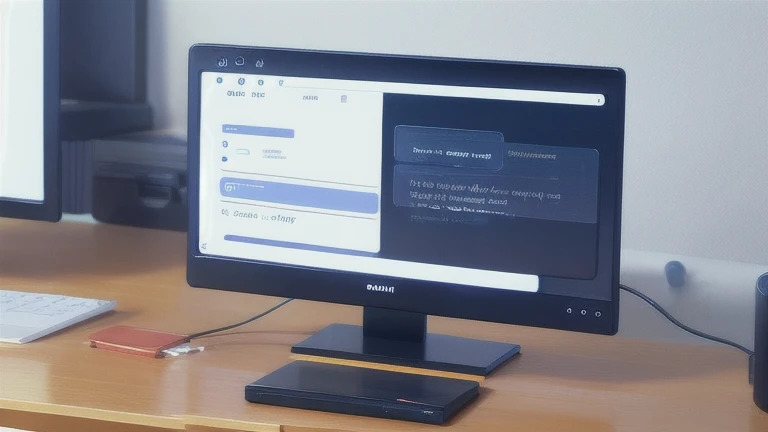
① Check or Replace HDMI Cable
Try using a different HDMI cable and ensure it’s fully plugged in.
② Use the Correct Port
If your PC has a dedicated graphics card, connect the HDMI cable to the GPU port, not the motherboard.
Using the wrong port often results in no display.
③ Change Monitor Input Source
Use the monitor menu to switch input to HDMI.
④ Check Windows Display Settings
Follow these steps:
⑤ Update Graphics Drivers
Download the latest drivers from NVIDIA or AMD official websites.
⑥ Lower the Resolution
Try setting resolution to something standard like 1920×1080.
⑦ Test with Another Monitor or PC
Helps identify where the issue is coming from.
⑧ Check BIOS Settings
Ensure display output settings are configured correctly, especially GPU priority.
■ Common Mistakes
■ Additional Tips (Based on Manufacturer Guidelines)
① GPU vs Integrated Graphics Behavior
On many systems, installing a graphics card disables the integrated GPU, meaning motherboard video ports won’t output a signal.
You may enable both via BIOS settings like “IGFX Multi-Monitor”, but this is not always recommended.
② Adapter Direction Matters
Display adapters are not always bidirectional.
③ Avoid Docking Stations
Adapters or docks can cause issues. Try a direct HDMI connection.
④ Use Windows + P Shortcut
Press Windows + P and select:
- Duplicate
- Extend
⑤ Troubleshooting Basics
■ Summary
Main causes of HDMI display issues include:
Wrong port connection is the most common issue, so check that first.
If none of these fixes work, hardware failure may be the cause.
For more troubleshooting guides, visit:
PC Troubleshooting Guide Collection
コメント